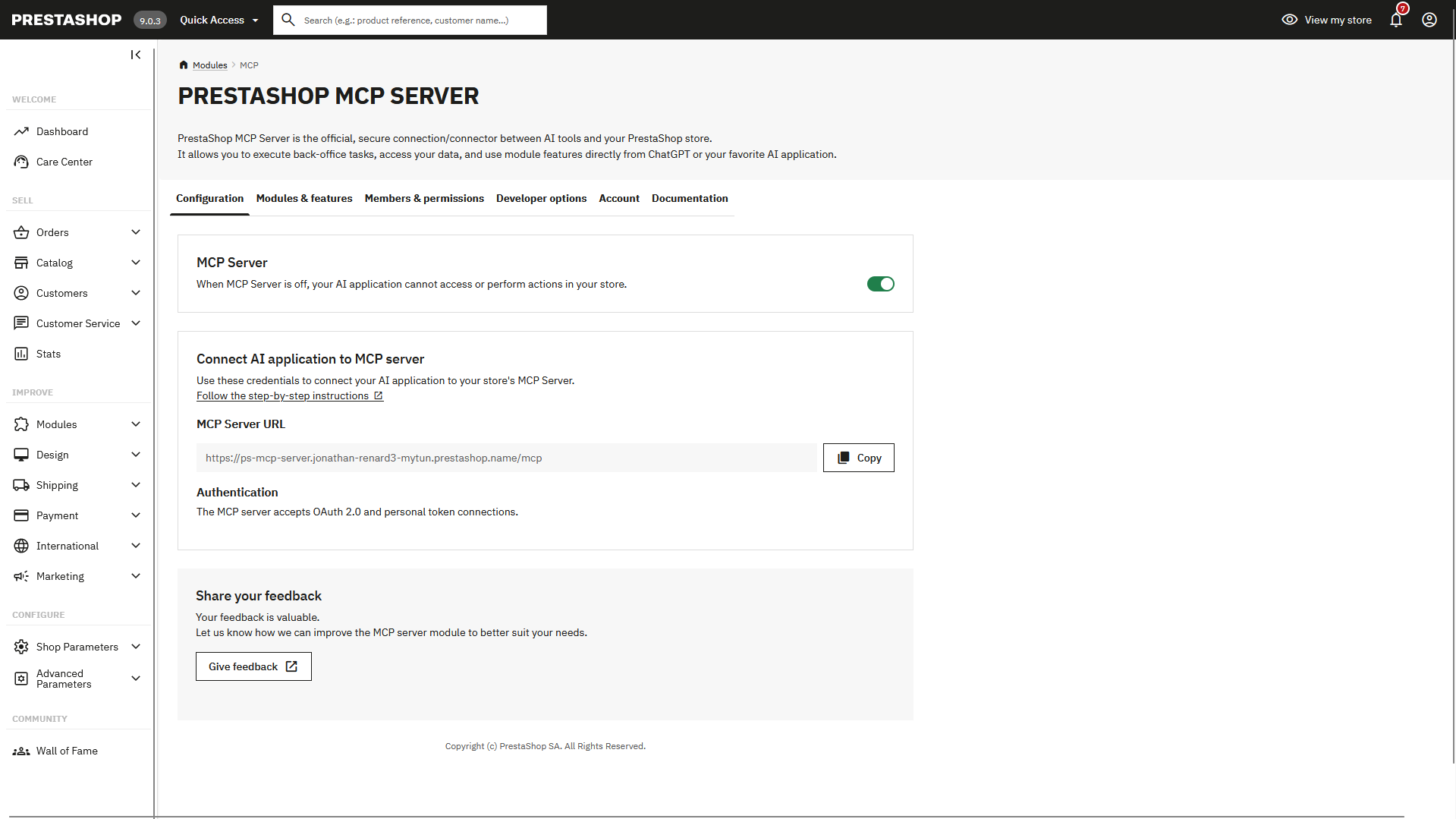
Installation
Follow these steps to install PrestaShop MCP Server on your PrestaShop store:
Step 1: Download and Install the Module
- Visit the PrestaShop Marketplace
- Search for PrestaShop MCP Server
- Download the module
- Log in to your PrestaShop back office
- Navigate to Modules > Module Manager
- Click Upload a module and select the downloaded file
- Once uploaded, click Install
Step 2: Configure the Module
After installation, configure the module:
- Locate PrestaShop MCP Server in your module list
- Click Configure
- Follow the configuration instructions to set up your preferences

Step 3: Install PrestaShop MBO
PrestaShop MBO (Marketplace in your Back Office) is required to manage module dependencies:
- If not already installed, go to Modules > Module Manager
- Search for PrestaShop MBO
- Click Install
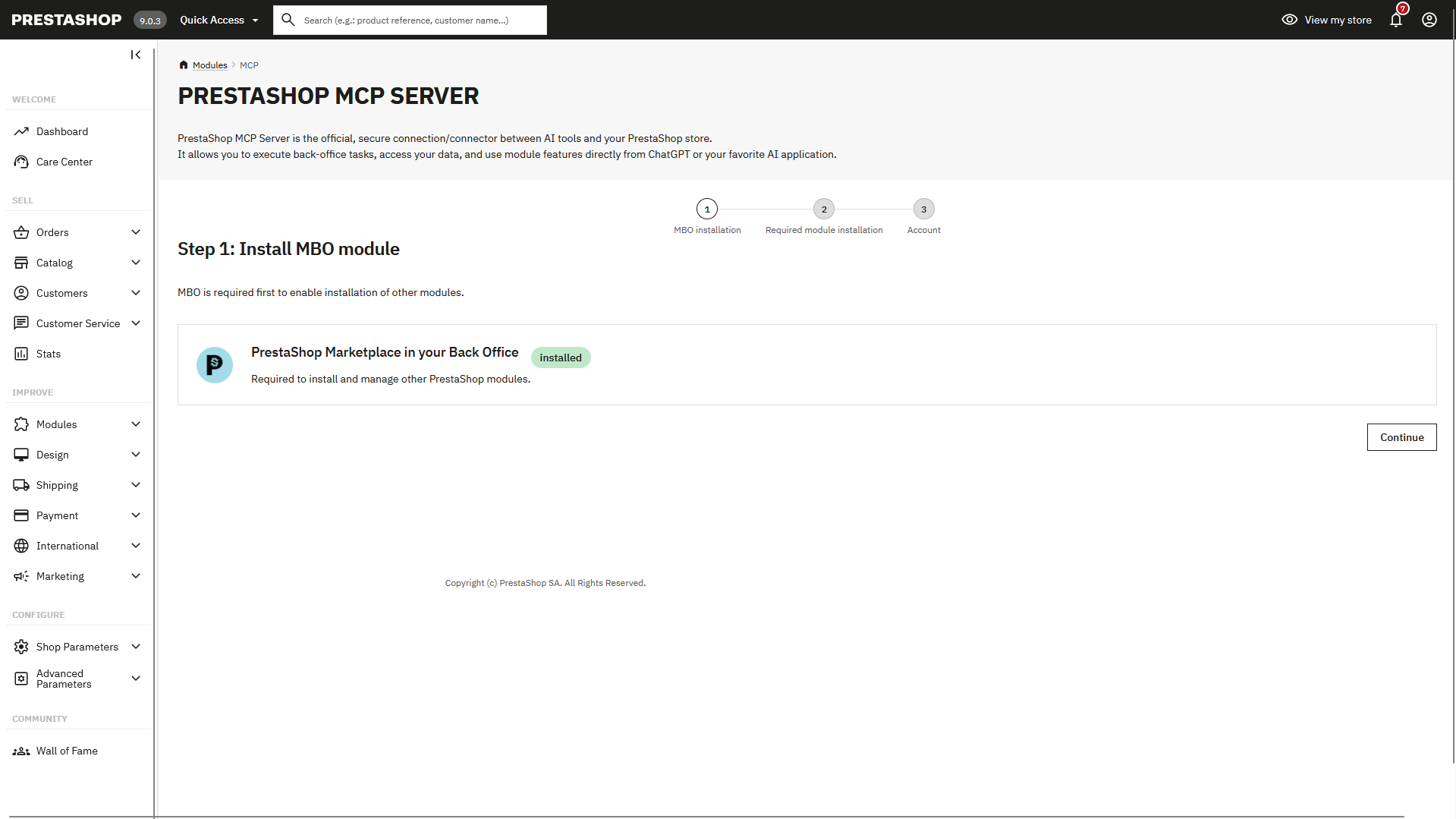
Step 4: Install Required Dependencies
PrestaShop MCP Server requires the following modules to function properly:
- PrestaShop Account: Manages authentication and user accounts
- PrestaShop EventBus: Handles data synchronization
- PrestaShop MCP Tools: Provides the tools that enable AI interactions
These dependencies will be automatically installed through PrestaShop MBO. If needed, you can manually install them from the Module Manager.
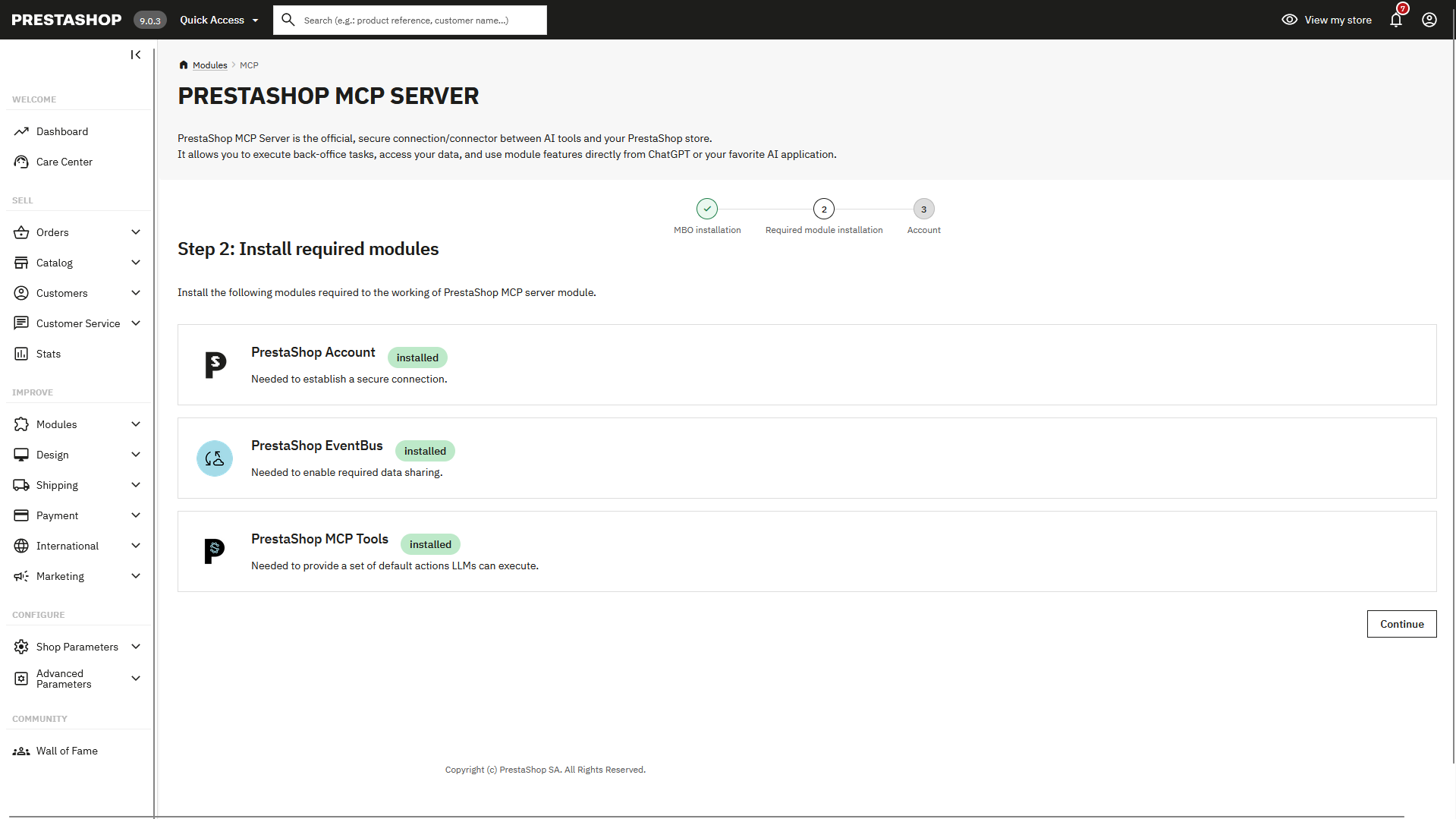
Step 5: Connect to Your PrestaShop Account
Log in to your PrestaShop Account:
- In your PrestaShop back office, locate the PrestaShop Account module
- Click Connect or Log in
- Enter your PrestaShop Account credentials
Warning
Important: You may already be logged in to PrestaShop Account. Please verify the email address you are currently connected with, as this will be important when connecting your AI application to your MCP Server later.
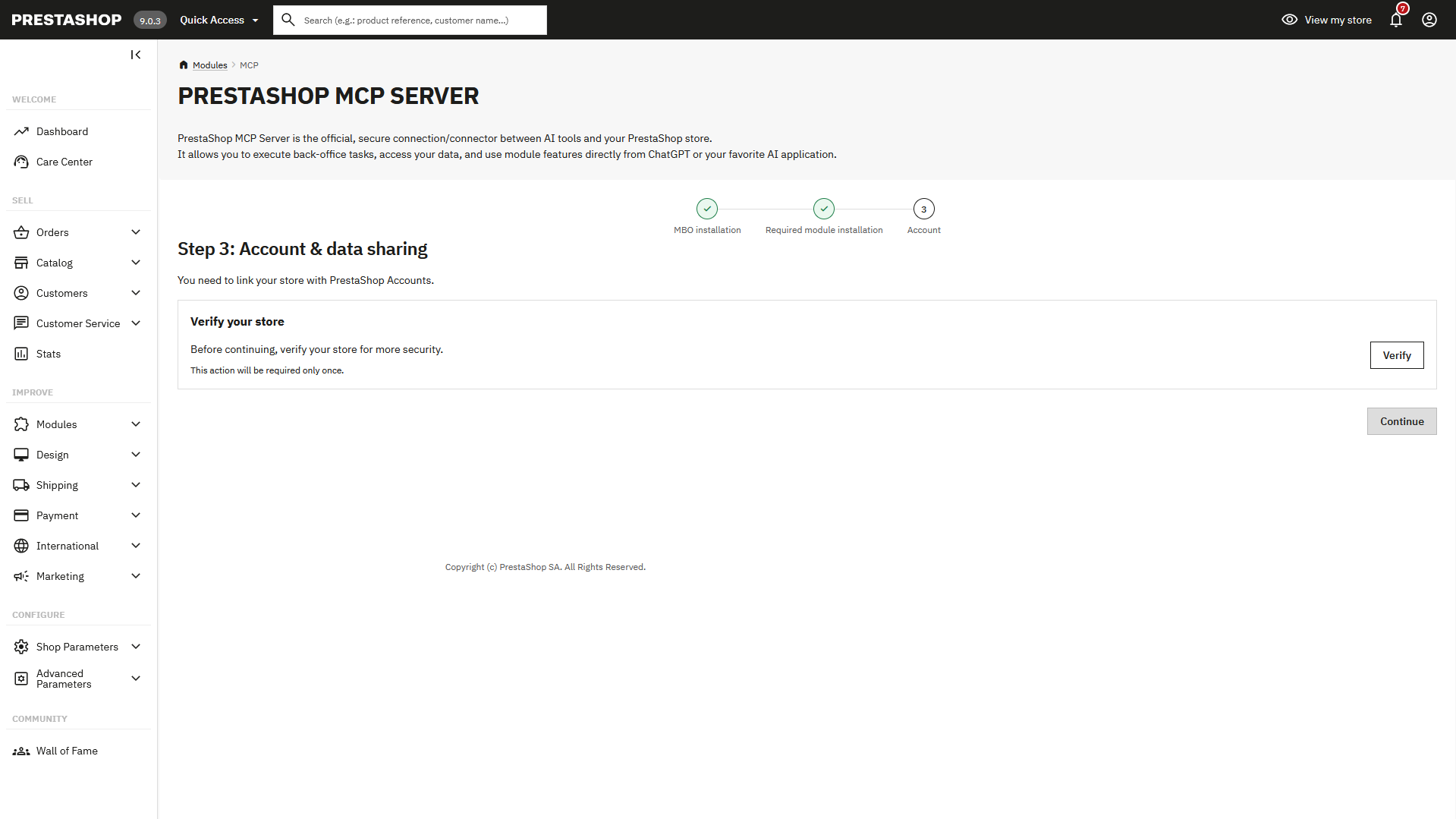
Step 6: Verify Installation
Once all dependencies are installed and you are connected to PrestaShop Account:
- Return to PrestaShop MCP Server configuration
- Verify that all required modules are active
- Your module is now ready to be connected to your AI application
Info
Success! Your PrestaShop MCP Server is now installed and ready to use. Proceed to the Setup page to configure your module.